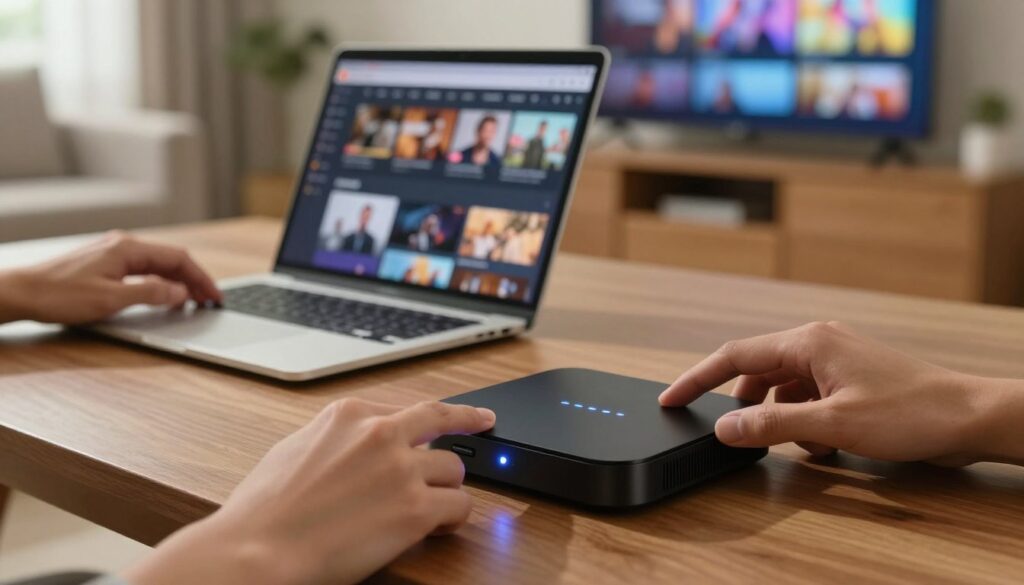
Are you tired of dealing with constant buffering or frozen screens while trying to enjoy your favourite shows? Many Canadian IPTV users encounter these frustrating technical hiccups during their evening entertainment. Fortunately, a simple power cycle often resolves these common streaming interruptions quickly.
This IPTV streaming guide provides a comprehensive walkthrough to help you restore high-quality service to your home. By following these essential steps, you can ensure your hardware remains reliable and functional for your daily viewing needs. Let’s get your system back on track so you can return to your marathon sessions without any further delays.
Key Takeaways
- Identify the common signs that your hardware requires a quick power cycle.
- Learn the safe procedure to refresh your connection without losing settings.
- Discover how to troubleshoot persistent connectivity issues effectively.
- Ensure your home entertainment setup remains stable for consistent performance.
- Follow expert tips to maintain optimal streaming quality across all your devices.
Understanding Why You Need to Reset IPTV Box
Many Canadian viewers encounter technical glitches that can be easily fixed with a simple reset. When your streaming experience starts to lag, it is often a sign that your hardware needs a little attention. Learning the basics of IPTV troubleshooting helps you maintain a high-quality connection without unnecessary downtime.

Common Symptoms of a Malfunctioning IPTV Box
You might notice your device acting up if the picture quality drops or the interface becomes unresponsive. Persistent buffering during live sports or frozen screens are the most common indicators that your system is struggling. If your remote control commands have a significant delay, it is likely time to perform a Reset IPTV Box procedure to clear out temporary errors.
The Difference Between a Soft Reboot and a Factory Reset
It is important to distinguish between a simple power cycle and a full system wipe. A soft reboot is essentially a quick restart that clears the device’s temporary memory, which often resolves minor software hiccups. In contrast, a factory reset returns the device to its original out-of-the-box state, erasing all custom settings and installed applications.
Think of a soft reboot as a quick nap for your device, while a factory reset is a complete system overhaul. You should always try the softer approach first to avoid losing your personalized configurations. If the issues remain, a deeper IPTV troubleshooting step might be required to restore full functionality.
When to Contact Your Canadian Service Provider
Sometimes, the problem is not with your hardware at all. If you have attempted to Reset IPTV Box multiple times and still face connection errors, the issue may lie with your IPTV service provider. You should reach out to them if you experience widespread outages or if your subscription credentials are being rejected by the server.
Your local support team can verify if there is a maintenance window or a regional signal problem affecting your area. Always keep your account details handy when calling your IPTV service provider to ensure a faster resolution. They are best equipped to handle problems that occur outside of your home network.
Preparing Your Equipment for a Successful Reset
A successful reset starts long before you press the power button, beginning with a thorough check of your home setup. Taking these preliminary steps ensures that you do not perform unnecessary procedures when a simple fix might have sufficed. Preparation is the key to avoiding common pitfalls during the troubleshooting process.

Checking Your Internet Connection Stability
Before you initiate any software changes, you must verify your IPTV internet stability. A fluctuating connection often mimics the symptoms of a broken device, leading many users to reset their boxes prematurely.
Try running a speed test on a secondary device, such as a smartphone or laptop, while connected to the same network. If your speeds are inconsistent, consider restarting your router or modem first to see if the streaming quality improves.
Ensuring Proper Power Supply and Cable Integrity
Physical hardware failure is a frequent culprit behind persistent IPTV connection issues. You should carefully inspect all power cables and Ethernet cords for signs of fraying or loose connections.
Ensure that your power adapter is plugged directly into a wall outlet rather than a power strip, which can sometimes cause voltage drops. A stable power supply is essential for the device to complete a factory reset without interruption.
Backing Up Personal Settings and Favorite Channels
Performing a factory reset will typically wipe all your saved data, including custom portal URLs and channel lists. Before you proceed, take a moment to manually record your login credentials and any specific settings you have customized.
If your IPTV interface allows for a configuration export, save this file to a USB drive for easy restoration later. This simple precaution ensures that you can quickly get back to your favorite Canadian content once the reset is complete.
Performing a Soft Reboot on Popular IPTV Models
When your screen freezes or apps become unresponsive, a soft reboot IPTV is your most effective tool. This process clears temporary memory and refreshes the system without deleting your personal data or channel lists. It is the safest way to address minor glitches before considering a full Reset IPTV Box procedure.

Power Cycling Your Mag Box or Formuler Device
For many Canadian users, the most reliable method is a physical power cycle. Simply unplug the power cable from the back of your Mag box or Formuler device. Wait at least 30 seconds to ensure all capacitors have fully discharged.
Plug the power cable back in and allow the device to complete its boot sequence. This simple action often resolves connectivity issues and restores smooth streaming performance.
Restarting Android-Based IPTV Boxes via System Settings
If you are using an Android IPTV box, you can often trigger a restart directly through the software interface. Navigate to the “Settings” menu using your home screen icon. Look for the “Device Preferences” or “About” section to find the “Restart” option.
Selecting this will safely shut down the operating system and reboot it automatically. This method is highly recommended if your device is still responsive enough to navigate the menu.
Using the Remote Control to Initiate a System Restart
Many modern devices allow you to use your IPTV remote control to force a restart. Often, holding down the power button for several seconds will bring up a power menu on your television screen. From there, you can select “Restart” or “Reboot” to initiate the process.
If your remote does not have a dedicated power menu, check your user manual for specific button combinations. Using these shortcuts is a convenient way to keep your system running efficiently without needing to reach behind your entertainment unit.
Executing a Factory Reset on Android IPTV Boxes
When your streaming experience becomes sluggish, a deeper system intervention might be required. If a soft reboot fails to resolve persistent software conflicts, an IPTV factory reset is often the most effective solution to restore your device to its original, out-of-the-box state.
This process is specifically designed for an Android IPTV box, which relies on a hidden recovery environment to manage deep-level system tasks. By following these steps, you can ensure your hardware runs as efficiently as the day you first plugged it in.
Navigating to the System Recovery Menu
To begin the IPTV system recovery process, you must first power off your device completely. Most models require you to hold down a physical reset button—often located inside a small pinhole on the back or bottom of the unit—while simultaneously plugging in the power cable.
Continue holding the button until the recovery logo or a menu screen appears on your television. This menu allows you to perform maintenance tasks that are not accessible through the standard user interface.
Wiping Cache Partition to Resolve Minor Glitches
Before committing to a full wipe, you should try IPTV cache clearing. This procedure removes temporary files that may have become corrupted over time, which often causes apps to freeze or stutter.
Select the “Wipe Cache Partition” option using your remote or the navigation buttons on the device. This action is completely safe and will not delete your personal apps or login credentials, making it a great first step for troubleshooting.
Restoring Factory Defaults for a Clean Slate
If clearing the cache does not solve your issues, you may need to perform a full factory reset. This will erase all user data, installed applications, and custom settings, effectively giving your device a fresh start.
Ensure you have your portal URLs and login details written down before proceeding, as you will need to re-enter them afterward. Once the process finishes, your device will reboot as if it were brand new.
| Reset Type | Data Impact | Best Used For |
|---|---|---|
| Soft Reboot | None | Minor connectivity drops |
| Cache Wipe | Temporary files only | App freezing or lag |
| Factory Reset | Full data erasure | Persistent system errors |
Advanced Reset Procedures for Proprietary IPTV Hardware
Proprietary hardware often requires a more hands-on approach to resolve deep-seated system errors. When standard software solutions fail to restore your device, performing an IPTV hardware reset becomes a necessary step to regain full functionality.
Using the Physical Reset Button on the Device Chassis
Many dedicated streaming boxes feature a small, recessed button located on the back or bottom of the chassis. You will typically need a paperclip or a similar thin tool to press this button safely.
Be sure to keep the device powered on while you gently hold the button for about ten to fifteen seconds. This action forces the hardware to bypass the operating system and initiate a clean recovery sequence.
Accessing Hidden Service Menus for Deep System Resets
If your device lacks a physical button, you may need to enter a hidden service menu. This is often achieved by holding specific buttons on your remote control while plugging in the power cable.
Once inside this menu, you can trigger an IPTV factory reset that wipes all corrupted data from the internal storage. This process is highly effective for clearing out persistent bugs that standard menus cannot reach.
Updating Firmware After a Hard Reset
After you have successfully wiped your device, it is vital to perform an IPTV firmware update immediately. A fresh installation ensures that your box is running the latest security patches and software optimizations.
Without the latest firmware, your device might struggle to communicate with Canadian streaming servers. Always check the manufacturer’s official website to ensure you are installing the correct version for your specific model.
Troubleshooting Connectivity Issues Post-Reset
If your IPTV box is struggling to connect after a factory reset, don’t worry, as this is a common part of the process. Once the system software is refreshed, the device often loses its saved network profiles and server links. Performing effective IPTV troubleshooting is the best way to get your streaming service back up and running quickly.
Reconfiguring Wi-Fi and Ethernet Settings
The first step in resolving IPTV connection issues is to ensure your hardware is talking to your router again. Navigate to the network menu in your device settings to scan for your home Wi-Fi network. If you prefer a more stable experience, consider using a wired Ethernet connection instead.
Make sure your cables are firmly seated in both the box and your modem. A loose connection can often mimic a software glitch, so double-check your physical setup before moving to digital configurations.
Updating DNS Settings for Better Canadian Server Performance
Sometimes, the default DNS settings provided by your internet service provider can lead to buffering or slow load times. By manually updating your DNS to a faster, public server, you can often improve streaming speeds across Canadian servers. This simple change can make a noticeable difference in your overall viewing quality.
Look for the network configuration or advanced IP settings within your device menu. You can typically input custom DNS addresses there to bypass local traffic congestion. This is a highly recommended step for users who experience frequent lag during peak evening hours.
Verifying Portal URL and Login Credentials
Finally, you must ensure your IPTV portal settings are accurate to regain access to your content library. Even a small typo in the portal URL will prevent the device from reaching the service provider’s server. Carefully re-enter your credentials, paying close attention to case-sensitive characters and special symbols.
If you are still unable to connect, verify that your subscription is active and that your MAC address is correctly registered with your provider. Keeping a backup of these details in a safe place will save you time during future maintenance tasks. Once these details are confirmed, your service should restore automatically.
Optimizing Your IPTV Box Performance After a Reset
Getting your IPTV box back to peak performance requires a few simple post-reset adjustments. Once your device is back online, you can take proactive steps to ensure it runs as smoothly as possible. Following these IPTV performance tips will help you maintain a stable and responsive system for your daily entertainment.
Managing Background Applications to Free Up RAM
Many devices suffer from sluggishness because too many apps run in the background. You should regularly check your task manager to close unnecessary programs that consume valuable system memory. Freeing up RAM is essential for preventing stuttering during high-definition playback.
Consider uninstalling any applications you no longer use to keep your storage clean. A leaner system environment allows your primary streaming software to operate with higher priority and better stability.
Clearing App Data for Streaming Services
If you notice buffering or loading errors, your cache might be the culprit. Following this IPTV streaming guide, navigate to your application settings to clear the cache for your specific streaming apps. This process removes temporary files that may have become corrupted during the reset.
- Open the Settings menu on your device.
- Select the Apps or Applications tab.
- Choose your primary streaming app.
- Select “Clear Cache” and “Clear Data” to refresh the service.
Adjusting Display and Audio Settings for Canadian Standards
To get the best picture quality, you must configure your IPTV display settings to match Canadian high-definition broadcasting standards. Most modern boxes default to 1080p or 4K resolution, but you should verify that your refresh rate is set to 60Hz for the smoothest motion. Ensure your audio output is set to “Auto” or “HDMI” to allow your television to decode surround sound formats correctly.
| Setting Category | Recommended Value | Benefit |
|---|---|---|
| Resolution | 1080p / 4K | Crisp Visuals |
| Refresh Rate | 60Hz | Smooth Motion |
| Audio Output | HDMI / Passthrough | High-Fidelity Sound |
| Color Space | RGB / YCbCr | Accurate Tones |
Safety Precautions and Best Practices for Canadian Users
Canadian IPTV users should prioritize security and maintenance to get the most out of their devices. Taking a proactive stance ensures that your hardware remains reliable while keeping your personal information secure from potential threats.
Avoiding Unauthorized Firmware Modifications
It is tempting to look for “unlocked” software to gain extra features, but you should stick to official channels. Installing unauthorized software can leave your system vulnerable to malware and backdoors.
Always perform an IPTV firmware update only through the manufacturer’s official website or the device’s built-in update tool. Modifying your system files often voids your warranty and can lead to a “bricked” device that no longer functions.
“Security is not a product, but a process that requires constant vigilance and the right tools to protect your digital environment.”
— Cybersecurity Expert
Protecting Your Privacy While Using IPTV Services
Maintaining your IPTV privacy is essential in today’s connected world. Many users find that using a reputable VPN service adds an important layer of encryption to their streaming traffic.
Be cautious about the apps you install on your box. Only download software from trusted sources to ensure that your login credentials and viewing habits remain private and protected from prying eyes.
Maintaining Your Device to Prevent Future Issues
Consistent IPTV maintenance is the secret to a long-lasting device. Dust buildup can cause your box to overheat, which leads to performance throttling and hardware failure over time.
Keep your device in a well-ventilated area and away from direct heat sources. Regularly clearing your cache and removing unused applications will keep your system running smoothly, ensuring you enjoy a seamless experience every time you turn on your TV.
Conclusion
Resetting your IPTV box is a straightforward process that resolves most common streaming frustrations when performed correctly. You now possess the knowledge to maintain a stable and high-performing entertainment system in your Canadian home.
Consistent device maintenance prevents future technical headaches. Regular updates and cache management keep your Formuler or Mag box running at peak efficiency. You can enjoy your favourite content without the worry of sudden service interruptions.
Keep this guide accessible for your future troubleshooting needs. Reach out to your local service provider if complex hardware issues persist beyond these standard steps. Your commitment to proper device care ensures a seamless viewing experience for years to come.
FAQ
What are the most common signs that I need to reset my IPTV box?
If you’re noticing frozen screens, persistent buffering, or the interface feels sluggish, it’s likely time for a reset. These symptoms often occur when the RAM is overloaded or there is a minor software glitch. Most Canadian users find that a quick power cycle resolves these streaming interruptions without further hassle.
What is the difference between a soft reboot and a factory reset?
A soft reboot (or power cycle) simply restarts the operating system, which is great for clearing out temporary bugs while keeping your favourite channels and settings intact. A factory reset, on the other hand, wipes all data from your Android IPTV box, returning it to the original settings it had when it left the factory. You should only perform a full reset if a soft reboot fails to fix the issue.
How do I perform a soft reboot on my Mag Box or Formuler device?
For a Mag Box or Formuler Z11, you can usually initiate a restart through the system menu. If the device is unresponsive, simply unplug the power supply from the wall outlet, wait about 30 seconds, and plug it back in. This ensures all residual power is drained, allowing the hardware to start fresh.
Will I lose my subscription details if I reset my device?
If you perform a factory reset, you will lose your saved Portal URL and login credentials. Before proceeding, always ensure you have these details written down or saved. After the reset, you’ll need to re-enter this information to reconnect to your Canadian service provider.
How can I improve my connection stability on Rogers or Bell internet after a reset?
After resetting your equipment, we recommend checking your Ethernet connection for a stable wired signal. You can also try updating your DNS settings to Google DNS or Cloudflare; this often results in better routing to Canadian servers and a much smoother streaming experience with fewer interruptions.
What should I do if my IPTV box is still freezing after a factory reset?
If a reset doesn’t do the trick, check for a firmware update. Manufacturers like BuzzTV and Nvidia frequently release patches to improve system stability. Additionally, ensure your HDMI cables are secure and that your internet connection is delivering the speeds promised by your provider.
Is it safe to use the physical reset button on the device chassis?
Yes, the physical reset button is designed for situations where the software menu is completely inaccessible. Using a small pin to press this button will usually trigger a hard reset. Just be aware that this will return your device to its original factory defaults, so you will need to reconfigure your Wi-Fi and portal settings afterward.
How do I optimize my IPTV box performance for Canadian high-definition broadcasting?
To get the best picture quality, navigate to your display settings and ensure the resolution matches your TV’s capabilities (such as 4K or 1080p). You should also regularly clear app data for your streaming services and manage background applications to free up system resources, ensuring your entertainment system stays snappy and responsive.
Why should I avoid installing unauthorized firmware on my IPTV hardware?
Installing unauthorized firmware modifications can significantly compromise your privacy and data security. It also risks “bricking” your device, making it completely unusable. Stick to official updates from brands like Formuler or Dreamlink to ensure your system remains stable and protected against vulnerabilities.