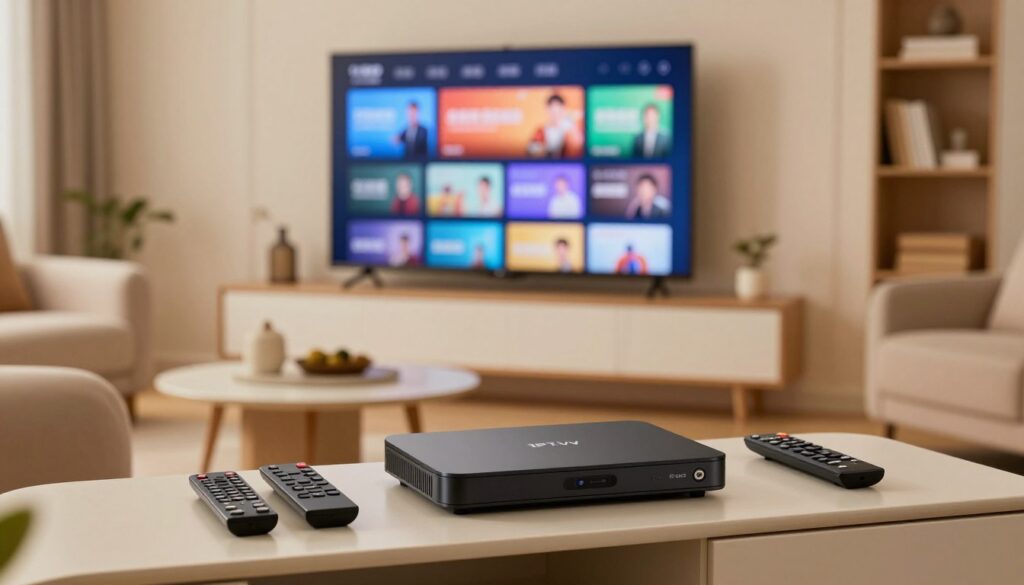
Are you ready to transform your home entertainment experience? As we move through 2026, many Canadians are moving away from traditional cable to enjoy more freedom with their viewing habits.
Setting up a modern streaming setup is much easier than you might think. This Canadian streaming guide is designed to help you get connected quickly and without any stress.
Whether you are tech-savvy or just starting your journey, our steps ensure your IPTV Box works perfectly with any television in your house. By following this simple Canadian streaming guide, you can unlock a world of content tailored to your preferences.
Upgrading your home entertainment system provides flexibility and better value for your household. Let’s get your new IPTV Box running so you can enjoy your favourite shows with a reliable streaming setup today.
Key Takeaways
- Transitioning from cable to digital streaming offers more flexibility for Canadian viewers.
- A proper setup ensures your device works seamlessly with any television model.
- Our guide simplifies the technical process for a stress-free installation experience.
- Modern streaming solutions provide better value and access to diverse content.
- Follow these clear steps to optimize your home viewing potential in 2026.
Understanding Your IPTV Box Hardware
Your digital media player is a powerful tool, but it works best when you know exactly how it connects to your home setup. Taking a few moments to examine the exterior of your device will make the installation process much smoother. By recognizing each input and output, you can ensure a stable and high-quality connection for all your favourite shows.

Identifying Ports and Cables
Most modern units feature a standard layout designed for quick setup. The HDMI port is the most important connection, as it carries both high-definition video and audio to your screen. You will also find a power input, which connects your media streaming device to a wall outlet, and an Ethernet port for a reliable wired internet connection.
Some models include additional ports for older equipment or external storage. You might see a USB port for software updates or a small AV jack for legacy audio-video cables. Always check the labels on the back of your IPTV Box to ensure you are using the correct cable for each specific slot.
Compatibility with Older and Newer Television Sets
Whether you are using a brand-new Smart TV or a reliable older display, your device is designed to be versatile. Modern televisions rely almost exclusively on HDMI, which provides the best picture quality. If you are connecting to an older set, you may need an adapter to convert digital signals into a format your television can process.
Understanding these hardware differences helps you avoid frustration during the setup phase. The following table outlines the most common connection types you will encounter when installing your media streaming device.
| Connection Type | Primary Function | Compatibility |
|---|---|---|
| HDMI | High-Definition Video/Audio | Modern Smart TV |
| AV/RCA | Standard Definition Video | Legacy Television |
| Ethernet | Wired Internet Access | All Networked Devices |
| USB | Data and Firmware Updates | Most Digital Media Player Models |
By identifying these ports early, you can prepare your cables before you even turn on your IPTV Box. This proactive approach ensures that your Smart TV receives the best possible signal for a crisp, clear viewing experience.
Preparing Your Television for Connection
Your television needs a few quick adjustments before it can display high-quality content from your new box. Taking a moment to configure your display ensures that the signal remains stable and clear. Proper preparation is the secret to a frustration-free setup process.

Selecting the Correct Input Source
Most modern televisions feature multiple ports, so you must tell your screen which one to listen to. Locate the “Input” or “Source” button on your remote control to view the available options. You will need to select the specific HDMI connection that corresponds to the port where you plugged in your device.
If you are unsure which port is which, look for the small labels printed on the back or side of your television. Once you select the correct input, your screen should display a welcome message or a black screen rather than a “No Signal” warning. This confirms that your television is successfully communicating with the hardware.
Adjusting Display Settings for Optimal Quality
If you are using a modern Smart TV, you may need to tweak a few internal settings to get the best picture. Navigate to the picture menu to ensure the resolution is set to “Auto” or the highest available setting for high-definition streaming. This simple step prevents your television from downscaling the image unnecessarily.
You should also check for features like “Game Mode” or “Cinema Mode” to see which provides the most natural look for your shows. Consistent streaming quality depends on these small adjustments, as they allow your television to process the incoming data stream efficiently. By taking these steps, you guarantee that your viewing sessions remain vibrant and sharp every time you turn on your device.
Connecting Your IPTV Box to the Network
Whether you live in a busy city or a quiet rural area, your Canadian internet connection needs to be ready for streaming. A stable link acts as the backbone of your entire streaming setup, ensuring that your favourite shows play without constant interruptions. By choosing the right connection method, you can enjoy high-quality video playback every single day.

Establishing a Wired Ethernet Connection
For the most reliable performance, an Ethernet setup is always the best choice. Simply plug one end of a Cat6 cable into your IPTV box and the other into an open LAN port on your router. This direct physical link provides superior network stability compared to wireless alternatives.
Wired connections are less prone to interference from household appliances or thick walls. You will notice that your content loads much faster, especially when watching live sports or high-definition broadcasts. It is the gold standard for anyone who wants a consistent, lag-free experience.
Configuring Wi-Fi Settings for Seamless Streaming
If running a cable across your living room is not possible, a Wi-Fi configuration offers a convenient alternative. Navigate to the network settings menu on your device and select your home wireless network from the list. Ensure you enter your password correctly to establish a secure connection.
To get the best results, try to keep your IPTV box within a clear line of sight to your router. If your signal is weak, consider using a Wi-Fi extender to boost coverage in your home. A strong signal is vital for maintaining high resolution during your viewing sessions.
Optimizing Network Speed for Canadian Internet Providers
Many Canadian internet providers experience heavy traffic during peak evening hours. You can improve your experience by limiting the number of other devices using your bandwidth while you watch. Closing background apps on your phone or computer helps keep your connection clear for your IPTV box.
If you still experience buffering, check your router settings to prioritize your streaming device. Some modern routers allow you to set Quality of Service (QoS) rules to ensure your IPTV box gets the speed it needs. These small adjustments go a long way in keeping your stream smooth.
| Feature | Ethernet Connection | Wi-Fi Connection |
|---|---|---|
| Reliability | Very High | Moderate |
| Setup Ease | Simple Plug-in | Requires Password |
| Speed Consistency | Excellent | Variable |
| Best For | 4K Streaming | Casual Viewing |
Step-by-Step Physical Installation
Connecting your hardware correctly is the foundation for a smooth streaming experience. Before you begin, ensure your IPTV Box is placed on a flat, stable surface with adequate ventilation. This simple preparation prevents overheating and keeps your equipment running efficiently for years to come.
Connecting via HDMI for High-Definition Output
The most reliable way to link your device to a modern television is through an HDMI connection. Simply plug one end of the cable into the back of your digital media player and the other into an available HDMI port on your TV. This method supports high-definition streaming, ensuring you get the crispest picture quality available.
Once the cable is secure, take note of the input number on your television screen. If you are also planning a wired Ethernet setup, connect your network cable now to ensure a stable internet link before the first boot.
Using AV Adapters for Legacy Television Models
If you are using an older television that lacks modern ports, you can still enjoy your content using an AV adapter. These converters bridge the gap between your IPTV Box and older RCA inputs. While this setup does not support high-definition streaming, it remains a functional solution for older hardware.
Ensure that the yellow, white, and red cables are matched correctly to the corresponding ports on your television. A loose connection here often leads to poor audio or video signal, so double-check that each plug is pushed in firmly.
Powering Up and Initial Boot Sequence
With all cables connected, it is time to power on your digital media player. Plug the power adapter into a wall outlet and press the power button on the remote or the unit itself. You will typically see a status light blink, indicating that the device is starting its internal boot sequence.
Wait patiently for the logo to appear on your screen, as this process may take a few moments during the first launch. Once the home screen loads, your IPTV Box is successfully installed and ready for the next phase of configuration.
| Connection Type | Video Quality | Best Use Case |
|---|---|---|
| HDMI | Up to 4K/UHD | Modern Smart TVs |
| AV/RCA | Standard Definition | Legacy Television Sets |
| Ethernet | N/A (Data Only) | Stable Network Streaming |
Navigating the Initial Software Setup
Navigating the initial software setup is the final step to unlocking the full potential of your new streaming device. Once the hardware is securely connected, this phase allows you to personalize the interface to meet your specific needs. A proper streaming setup ensures that your device functions exactly how you want it to from the very first day.
Language and Regional Configuration
The first screen you will encounter usually asks for your preferred language and time zone. Selecting the correct region is essential for Canadian users, as it ensures that local content and programming guides are prioritized. This simple step helps the system provide accurate weather updates and regional news tailored to your specific location.
Connecting to Your Service Provider Portal
After setting your preferences, you must link your device to your service provider portal. This connection authenticates your subscription and grants you access to your purchased channels and on-demand libraries. If you previously completed your Wi-Fi configuration, the device should connect to the internet automatically to verify your credentials.
Updating Firmware for Security and Performance
Keeping your software current is a critical step in protecting your device and ensuring it runs the latest features available in 2026. Regular firmware updates patch security vulnerabilities and improve overall system stability. You should always allow these updates to finish completely to avoid interrupting the installation process.
The following table outlines the key stages of your initial device preparation to help you track your progress effectively.
| Setup Stage | Primary Goal | Estimated Time |
|---|---|---|
| Language Selection | Localize interface | 1-2 Minutes |
| Network Sync | Enable Wi-Fi configuration | 2-3 Minutes |
| Portal Login | Activate services | 3-5 Minutes |
| System Update | Install firmware updates | 5-10 Minutes |
By following these steps, you ensure your streaming setup remains reliable and secure. Taking the time to configure these settings correctly will prevent many common issues down the road.
Managing Your IPTV Box Channels and Content
Transforming your media streaming device into a personalized entertainment hub begins with effective content management. By taking a few moments to configure your settings, you ensure that your viewing experience remains smooth and tailored to your specific tastes.
Organizing Your Favourite Channels
Most modern boxes allow you to create custom lists to keep your most-watched IPTV channels front and centre. You can easily remove unwanted stations from your main guide to reduce clutter and save time while browsing.
Consistency is key when organizing your lineup. We recommend grouping your news, sports, and entertainment networks into logical categories so you can find exactly what you want with just a few clicks of your remote.
Setting Up Parental Controls and Security
Protecting your family is a top priority for many Canadian households. You can implement parental controls to restrict access to mature content by setting up a secure PIN code.
Once enabled, this feature prevents unauthorized users from viewing specific programs or changing system settings. It provides peace of mind, knowing that your children are only accessing age-appropriate material while you are away.
Accessing On-Demand Libraries and Catch-Up Services
Beyond live broadcasts, your device offers a wealth of on-demand libraries and catch-up services. These tools allow you to watch your favourite shows on your own schedule, rather than waiting for a specific air time.
Simply navigate to the “On-Demand” or “Archive” section within your provider’s menu to browse available titles. Mastering these tools ensures you never miss an episode of your most beloved series, making your viewing experience truly flexible and enjoyable.
Troubleshooting Common Connection Issues
If your viewing experience is interrupted, effective IPTV troubleshooting can help you get back to your favourite shows quickly. Even with a high-quality IPTV Box, you may occasionally encounter technical hurdles that require a bit of patience to resolve. Most of these common problems have simple solutions that do not require professional assistance.
Resolving No Signal Errors
A “No Signal” message is often the result of a loose connection or an incorrect input selection on your television. First, ensure that your HDMI cable is firmly plugged into both the device and the TV port. You should also verify that your television is set to the specific HDMI input corresponding to your device.
If the connection remains inactive, try unplugging the power cable from your IPTV Box for thirty seconds. This simple power cycle often clears temporary software glitches. If the issue persists, consider testing a different HDMI cable or a different port on your television to rule out hardware failure.
Fixing Buffering and Connectivity Drops
Persistent buffering is usually a sign of poor network stability within your home environment. To improve your connection, ensure your router is placed in an open area away from thick walls or other electronic interference. If you are using a wireless connection, moving your router closer to the device can significantly boost signal strength.
For those relying on Wi-Fi, switching to a 5GHz band can often provide a more stable stream compared to the crowded 2.4GHz frequency. If you continue to experience drops, connecting your device directly to the router via an Ethernet cable is the most reliable way to ensure consistent network stability.
Addressing Audio and Video Synchronization Problems
Sometimes, the sound may lag behind the picture, which can be quite distracting during a movie or live sports event. This audio synchronization issue is frequently caused by processing delays within the television’s internal speakers. You can often fix this by navigating to your TV’s audio settings and adjusting the “AV Sync” or “Lip Sync” delay feature.
If the problem remains, a quick restart of your IPTV Box usually resets the internal clock and fixes the audio synchronization. Keeping your device firmware updated is also essential, as manufacturers often release patches to resolve these specific playback bugs. Refer to the table below for a quick summary of common fixes.
| Issue | Primary Cause | Quick Fix |
|---|---|---|
| No Signal | Loose Cable | Check HDMI connection |
| Buffering | Weak Wi-Fi | Use Ethernet cable |
| Audio Lag | Processing Delay | Adjust TV Sync settings |
| Device Freeze | System Overload | Perform power cycle |
Enhancing Your Viewing Experience
Your streaming setup has hidden potential waiting to be unlocked through these advanced tips. By taking a few extra steps, you can significantly boost your streaming quality and make your daily entertainment much more enjoyable. These small adjustments ensure that your hardware works at its peak performance level every single day.
Integrating External Sound Systems
While built-in television speakers are functional, they often lack the depth needed for a cinematic feel. Connecting a soundbar or a surround sound system can completely transform your living room audio. This upgrade is particularly helpful for maintaining perfect audio synchronization during fast-paced action scenes or live sports broadcasts.
- Use an HDMI ARC or eARC connection for the best possible sound fidelity.
- Ensure your audio settings match the output capabilities of your external speakers.
- Consider optical cables if your television lacks modern HDMI audio return ports.
Using Remote Control Apps and Voice Commands
Navigating through hundreds of IPTV channels can sometimes feel tedious with a standard remote. Many modern boxes now support smartphone applications that turn your mobile device into a powerful controller. These apps often feature touchpads and keyboards that make searching for content much faster.
Voice commands are another fantastic way to simplify your experience. By using simple voice prompts, you can quickly launch apps, search for specific shows, or adjust volume levels without pressing a single button. This hands-free approach adds a layer of modern convenience to your home setup.
Managing Storage and Cache for Better Speed
Over time, your device may accumulate temporary data that slows down the interface. Regularly clearing your cache is a proactive step to keep your system running smoothly and prevent annoying lag. You should check your settings menu periodically to manage installed applications and remove those you no longer use.
Maintaining enough free storage space is essential for consistent streaming quality. If your device feels sluggish, try these quick maintenance tasks:
- Clear the cache for your primary streaming applications once a month.
- Uninstall unused apps to free up valuable system memory.
- Restart your device weekly to refresh the operating system and clear background processes.
Safety and Maintenance Tips for Canadian Users
Canadian users can easily extend the lifespan of their devices by following a few simple IPTV maintenance steps. Taking care of your hardware ensures that your streaming setup remains reliable for years to come. By staying proactive, you protect your investment and keep your home network running smoothly.
Protecting Your Device from Overheating
Heat is the primary enemy of any electronic device. To prevent overheating, ensure your box is placed in an open area with plenty of airflow. Avoid stacking other electronics on top of it, as this traps heat and can lead to hardware failure.
If you notice your device feels hot to the touch, consider using a small cooling pad or simply moving it to a cooler location. Proper ventilation is the most effective way to maintain optimal operating temperatures. Keeping your device cool will significantly improve its performance and longevity.
Understanding Local Privacy and Data Regulations
When using streaming services, it is important to be aware of how your data is handled. Canada has strict privacy laws, such as the Personal Information Protection and Electronic Documents Act (PIPEDA). These regulations are designed to protect your personal information from unauthorized access.
Always review the privacy policies of your service providers to understand what data they collect. Using a secure connection over your Canadian internet service helps keep your viewing habits private. Being informed about these regulations ensures that your digital footprint remains secure.
Regular Maintenance for Long-Term Reliability
Consistency is key when it comes to keeping your system in peak condition. You should check for firmware updates at least once a month to ensure you have the latest security patches. Additionally, using parental controls helps manage content access for younger viewers while keeping your settings secure.
Dusting your device and checking cable connections periodically can prevent signal drops. A clean, well-maintained system is far less likely to experience unexpected errors. Use the following schedule to keep your hardware in top shape:
| Maintenance Task | Frequency | Benefit |
|---|---|---|
| Check Firmware | Monthly | Security & Stability |
| Dusting Vents | Quarterly | Prevents Overheating |
| Review Privacy Settings | Bi-Annually | Data Protection |
| Update Parental Controls | As Needed | Content Safety |
Conclusion
Setting up your digital media hardware transforms how you interact with your television. This Canadian streaming guide provides the foundation for a reliable and high-quality viewing experience across your household.
You now possess the knowledge to manage your device settings with confidence. Regular IPTV maintenance ensures your system remains fast and responsive for every broadcast. Proactive care prevents common performance lags during peak viewing hours.
Occasional IPTV troubleshooting helps you resolve minor signal interruptions quickly. You can keep your connection stable by monitoring your network health and firmware updates. These simple habits protect your investment and keep your favourite shows running smoothly.
Enjoy the freedom of a customized entertainment hub tailored to your preferences. Your journey into high-definition streaming starts with these essential steps. Explore your new content library and make the most of your connected home today.
FAQ
Can I connect my IPTV box to an older television that does not have an HDMI port?
Yes, you absolutely can! While high-definition output is best achieved via an HDMI cable on modern Samsung or LG Smart TVs, you can use AV adapters to connect your digital media player to legacy models. This ensures every Canadian household can enjoy modern streaming regardless of their television’s age.
Should I use a Wi-Fi connection or a wired Ethernet cable for the best streaming experience?
For the most reliable experience with Canadian internet service providers like Bell, Rogers, or Telus, we recommend a wired Ethernet connection. This provides maximum network stability and minimizes buffering, though a properly configured Wi-Fi setup is often more convenient for many home layouts.
What should I do if my television displays a “No Signal” error after I plug everything in?
First, double-check that your HDMI connection is secure at both ends. Then, use your TV remote to ensure you have selected the correct input source. This is a common part of IPTV troubleshooting and usually resolves the issue in seconds.
Is it really necessary to perform regular firmware updates on my device?
Yes, keeping your firmware updated is critical for both security and performance. Updates ensure your IPTV Box is protected against new digital threats and that you have access to the latest features and on-demand libraries available in 2026.
Can I restrict certain content or channels to keep the viewing experience safe for my kids?
Certainly! You can easily establish parental controls within the software settings. This allows you to password-protect specific favourite channels and ensure a safe, family-friendly environment for everyone in your home.
How can I improve the overall speed and responsiveness of my IPTV Box?
To maintain peak streaming quality, it is a good idea to regularly manage storage and cache. Clearing out temporary files prevents your device from slowing down, ensuring that your initial boot sequence and app navigation remain snappy and efficient.
Can I use my existing sound system, like a Sonos or Bose soundbar, with my IPTV setup?
You bet! You can integrate external sound systems like a Sonos Arc or Bose Smart Ultra Soundbar to significantly enhance your viewing experience. Most boxes support digital audio output that syncs perfectly with your home theatre hardware for cinematic sound.
How do I prevent my IPTV Box from overheating during long binge-watching sessions?
To ensure long-term reliability, place your device in a well-ventilated area with plenty of airflow. Avoid stacking it directly on top of other heat-generating electronics like a PlayStation 5 or a high-powered router, as proper IPTV maintenance starts with keeping the hardware cool.
Are there specific privacy regulations I should be aware of as a Canadian user?
It is always wise to be mindful of local privacy and data regulations in Canada. Using a secure connection and keeping your service provider portal credentials private helps protect your personal information while you enjoy your streaming content.