Yes, IPTV can work on Roku when you have a compatible player and an authorized stream source. If you want live channels or other video on your television, the player and the television service are separate: one loads streams, while the other supplies them.
An M3U playlist is a text-based list of stream links or a URL that a compatible player uses to load content. Your setup needs a Roku-compatible playback route and access details that match the format it accepts. Neither a player nor a playlist automatically grants rights to watch a stream.
Key Takeaways
- Check your Roku model and the official Roku Channel Store.
- Choose a Roku player, casting, or a home media server.
- Match the player to your provider’s login format.
- Use streams you have permission to watch.
- Test playback before choosing a longer service plan.
Start by checking what Roku permits on your device before you settle on an app.
Is IPTV on Roku compatible with your device?
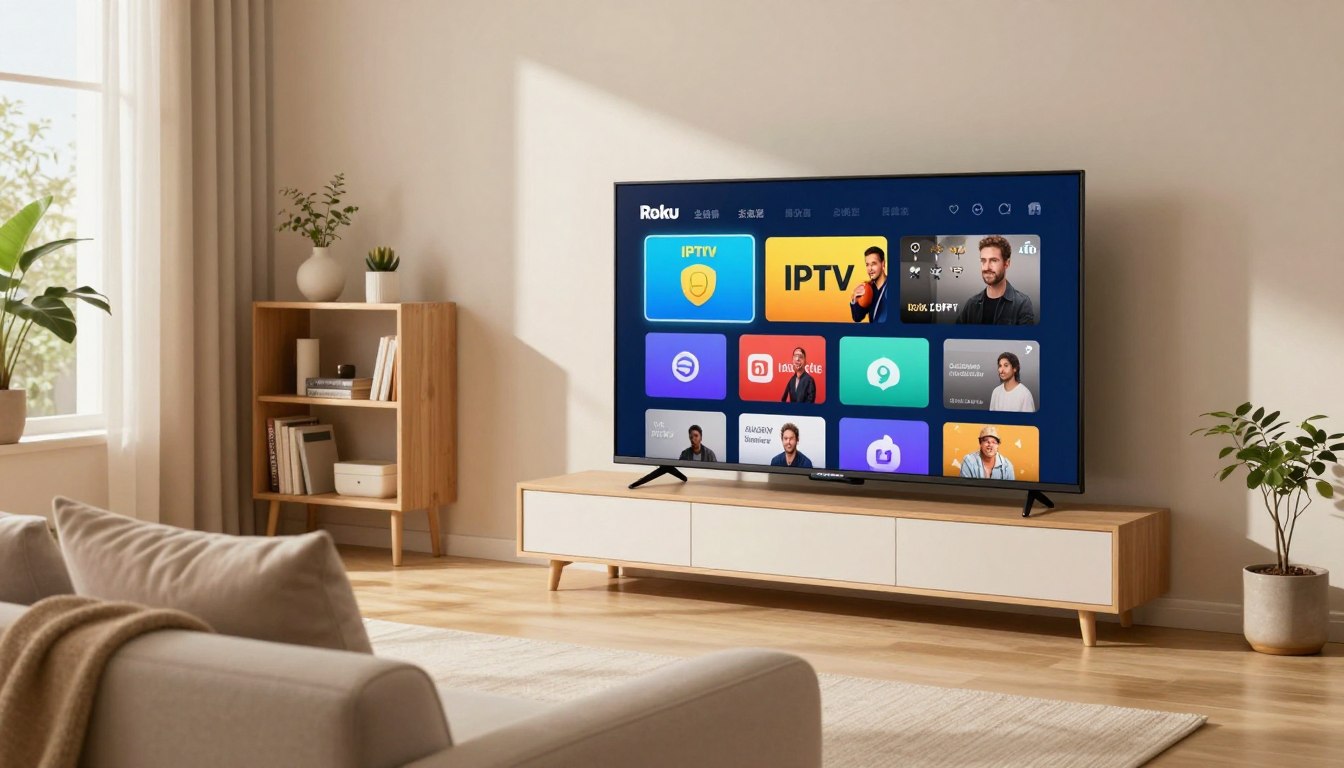
Compatibility depends on your Roku model and the apps available in the official Roku Channel Store. If the store lists a suitable player for your device, you can use it to load supported streams. Start with the store, since app availability can vary.
Roku is a closed platform: it does not support external APK files or sideloading. Roku deactivated old private channel codes in February 2022, so those codes cannot add an IPTV app today. Check the app’s current store listing and supported Roku devices instead.
Use an app listed in the official Roku Channel Store; old private channel codes are inactive, and Roku does not support sideloading APK files.

People asking how to get secret channels on Roku should look for official store listings, not code lists posted online. A channel listing shows whether the app is available through Roku’s supported route. It does not promise that every provider or stream format will work.
Check the app’s device support, accepted login types, and any notes about playback before adding it. Your television can display content only when the app and stream format work together. That small check can save you from entering account details into an incompatible player.
Roku’s limits narrow the choices, but they do not leave you with only one way to watch. The next decision is how you want to get a stream onto the screen.
Which Roku setup option fits your viewing habits?
If you want to enter a playlist with your Roku remote, a store player may suit you. If you already watch streams on a phone, casting may feel easier. Your existing habits are a useful starting point, along with the devices you already own.
Roku player listings include IPTV Smarters, Xtream IPTV Player, and IPTV Pro. These are playback tools, not a ranking, and none supplies channels by itself. Choose by supported login format, store availability, and any in-app charges.

| Route | What you need | Best fit | Main limitation |
|---|---|---|---|
| Roku Channel Store player | Compatible Roku, listed app, supported stream details | Entering details with a Roku remote | App formats and availability vary |
| Casting or AirPlay | Supported phone or computer, Roku support, same network | Playing a stream already open on another device | Device and app support can differ |
| Jellyfin or Plex server | Home server, media library, Roku client app | Watching your own stored media on Roku | Setup and library management take extra work |
Player apps from the Roku Channel Store
Xtream IPTV Player supports streaming URLs and Xtream Codes API credentials. IPTV Smarters Pro supports M3U playlists and Xtream Codes credentials. Match the app to the access method your IPTV provider gives you, since similar-looking login screens can ask for different details.
The best IPTV app for Roku depends on that match, not on a universal winner. For IPTV Pro for Roku, check its current store listing and accepted formats. A free IPTV app for Roku may still include in-app charges, so read the listing before you install it.
Casting from a phone or computer
Casting or AirPlay can be convenient when a supported phone, computer, app, and Roku can work together. You may control playback from the device where the stream is open, rather than typing a long URL with a remote. The trade-off is that support depends on the specific devices and app.
A home media server or another streaming device
Jellyfin or Plex can organize a home media library and play it through a Roku client. This route suits people who already manage their own media files, rather than those seeking a quick way to load a provider’s live channels. Another streaming device may offer more native player choices, but adds hardware and setup.
Choose the route first, then check which login information your IPTV provider supplies.
What do you need before loading IPTV content?
Entering an M3U URL in a field that expects account credentials will not log you in. The player needs the same access format your service provides. Check the field label before typing, especially when the screen offers several login choices.
An M3U playlist is a text-based list of stream links or a URL that a compatible player uses to load content. An M3U playlist URL is entered as a link; an Xtream Codes API login typically needs a server address, username, and password. A Roku player supplies neither channels nor a subscription.

M3U playlist or Xtream Codes login
Look at the details your IPTV provider gave you and select the matching option in the player. Some apps accept both methods, while others support only certain formats. If the provider gives you a URL, do not split it into account fields unless its instructions specifically tell you to.
| Access method | What you need | Where it goes | Common snag |
|---|---|---|---|
| M3U playlist URL | Complete playlist link | Player’s M3U or playlist field | Copied URL is incomplete or expired |
| Xtream Codes API | Server address, username, password | Player’s Xtream Codes login fields | Server address has a typo |
| Home media server | Server address and permitted account access | Jellyfin or Plex Roku client | Server is offline or unreachable |
Confirm access, rights and connection
Before loading channels, confirm that you have permission to stream the chosen content. Rights to distribute a stream matter, even when a player can technically open it. Keep account details private, and avoid entering them into an app you cannot identify.
A reliable home connection also helps prevent pauses and failed playback. If a stream does not open, check whether your internet connection works on another device before changing account settings. With the correct details and authorized access in hand, you are ready to open the player.
How do you install a player and load channels?
Search the Roku Channel Store for a compatible player, then follow its on-screen setup. Use the official listing for your device rather than a download site. How to install IPTV on Roku means adding a supported Roku channel, not installing an APK.
Have your playlist URL or account details ready before you begin. Roku IPTV codes are not a workaround: old private channel codes were deactivated in February 2022. IPTV Smarters app download for free on Roku depends on its current store availability and any app charges, so do not assume the download is free.
Install a player from the Roku Channel Store
Use these four steps to add a listed player and test your own stream details:
- Search the Roku Channel Store for a compatible player.
- Add the player to your Roku, then open it.
- Choose the login method that matches your access details.
- Enter the playlist URL or Xtream Codes details, then test playback.
Enter the playlist or account details
Type each detail carefully, especially long server addresses and passwords. Some players show a confirmation screen or ask you to save the information before loading channels. If the player offers a test or preview option, try one stream first rather than assuming every channel will open.
Most first attempts fail because the details, format, or connection do not match. Check for mistyped credentials, an expired playlist, an unstable network, or a format the player does not support. If one stream fails while others work, the problem may be limited to that stream rather than the whole setup.
Close and reopen the player after correcting a typo, then test again. Avoid repeatedly changing unrelated settings, since that makes it harder to spot the cause. Once playback works, turn to the service and plan that can keep the setup useful for your household.
How can you choose a legal service and plan?
Legal access depends on whether the IPTV provider has rights to distribute its streams. The IPTV label alone does not make a service lawful or unlawful. Check the provider’s rights to the content, not just the channel count or headline price.
Compare the line-up with the channels your household actually watches. Check Roku compatibility, billing frequency, cancellation terms, add-ons, and customer support before committing. There is no single standard IPTV price; your yearly total depends on monthly or annual billing and any extras.
A low advertised price or a long channel list does not prove that a provider has distribution rights. Check the rights and the full billing terms before paying.
Compare channels, terms and total cost
Read the renewal details so you know when charges repeat and how cancellation works. Add-ons can change the amount you pay beyond the advertised base plan. For an annual comparison, multiply the current monthly rate by 12, then include fees and extras; compare that total with an annual offer.
There is no need to pay for a large bundle if it misses the channels you watch most. Check whether the plan includes local channels, sports, or other content your household expects. Support matters too, especially when you need help with billing or account access.
Check rights and Roku compatibility
Use this short checklist before you commit:
- Verify that the provider has rights to distribute its content.
- Confirm that the service supports your Roku setup.
- Read renewal, billing, and cancellation terms.
- Calculate the full yearly total, including extras.
People asking what is replacing IPTV do not need to look for one single successor. Licensed live-TV apps, on-demand streaming services, and antenna TV are alternatives for different viewing needs. Choose the lawful service whose channels, Roku support, and full terms fit your household.
Conclusion
A Roku setup is simplest when the player and provider accept the same supported format. Your Roku can play streams through a compatible app or another supported route, while the provider supplies the stream. Use only content you are authorized to watch.
Start by checking the official Roku Channel Store for a player that works with your device. Then ask your chosen provider which login format it supplies, such as an M3U playlist or Xtream Codes API details. Check the app listing and prepare the matching credentials before you start.
FAQ
Which IPTV is legal in the USA?
IPTV is a delivery method, and legality depends on whether the provider has rights to distribute its channels and video. A player app does not make an unlicensed stream lawful. Check the service’s content rights, billing terms, and company details before subscribing. Licensed live-TV apps are one option if you want a familiar subscription service.
How do I get the secret channels on Roku?
Roku deactivated old private channel codes in February 2022, so those codes are not a current way to add channels. Search the official Roku Channel Store for apps available to your device. A listed app may still have limits on supported stream formats or providers, so read its details before adding it.
What devices can I watch IPTV on?
Common options include compatible smart TVs, phones, tablets, computers, and streaming devices. The app support and provider access can vary by device, even for the same account. Check whether your chosen service supports the screen you want to use and whether its player accepts the login format the provider supplies.
Which free IPTV player is the best?
There is no universal best free IPTV player. Compare supported playlist formats, Roku availability, ease of use, and any in-app charges. A player is a playback tool, not a source of channels or a subscription. A free download also does not guarantee free access to streams, so check what the app and service each provide.
What are the top 5 IPTV services?
There is no fixed top-five ranking that suits every viewer. Mainstream live-TV streaming services include YouTube TV, Hulu + Live TV, Sling TV, Fubo, and DIRECTV STREAM. Their channel line-ups, packages, terms, and Roku support can change. Compare current details against the channels you watch, rather than choosing by a ranking alone.
Which IPTV service will be the best in 2026?
There is no universal winner for 2026. The best fit depends on licensed content, the channel line-up you want, Roku compatibility, current terms, and total cost. Check the channels you use most and whether the provider supports your playback route. A service with more channels may not be a better fit if it lacks your favourites.
What is the best streaming device for IPTV in the USA?
The best device depends on the apps and formats you need. Roku offers an official-channel approach, while some other streaming devices support more native player apps. Compare the available apps, provider compatibility, ease of setup, and price for the device. Choose one that supports a lawful service you already plan to use.
How much does IPTV cost a year?
There is no standard annual IPTV amount. Multiply the current monthly rate by 12, then add fees, add-ons, and any other charges. Compare that total with an annual offer and check its renewal and cancellation terms. The final cost depends on the provider’s billing option and the extras you choose, not simply the number of channels.