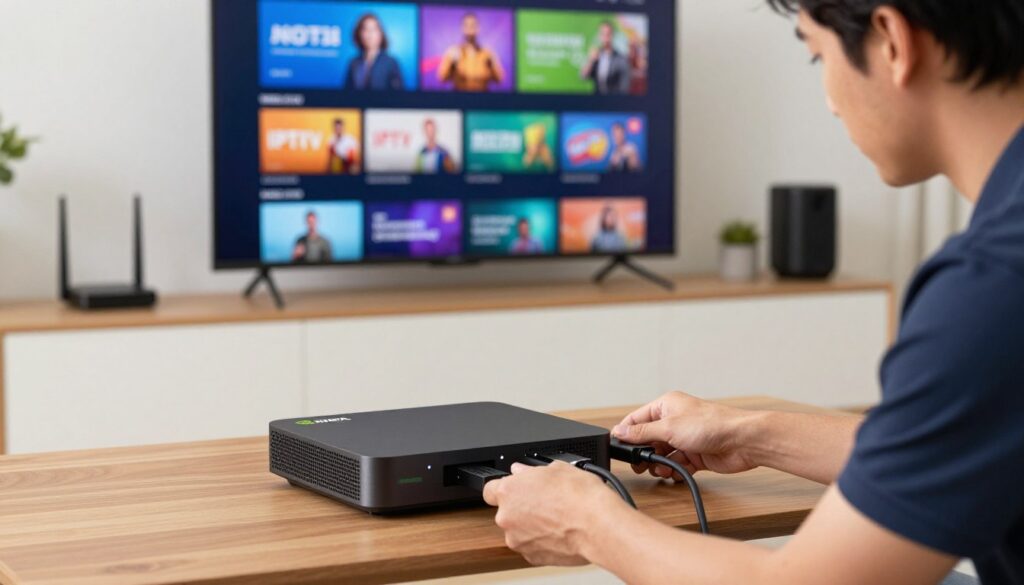
Streaming technology has evolved rapidly, making it easier than ever to access your favourite global content from the comfort of your living room. If you are looking to optimize your home entertainment, mastering the IPTV on NVIDIA Shield process is a fantastic first step.
This comprehensive walkthrough provides a clear path for a successful Canadian IPTV setup. By following these modern steps, you will ensure your hardware is ready for high-quality media consumption throughout 2026.
Our IPTV installation guide is designed to help you navigate the technical requirements with total confidence. Whether you are a tech enthusiast or a casual viewer, these instructions will help you unlock the full potential of your NVIDIA Shield 2026 device for a seamless viewing experience.
Key Takeaways
- Ensure your device firmware is updated before starting the configuration process.
- Use a reliable high-speed internet connection to prevent buffering during live broadcasts.
- Always verify your service provider credentials to maintain a secure connection.
- Organize your favourite channels into custom playlists for faster navigation.
- Consider using a virtual private network to enhance your online privacy while streaming.
Why the NVIDIA Shield is the Ultimate IPTV Device
Many Canadian cord-cutters consider the NVIDIA Shield the gold standard for modern home media. Its reputation is built on consistent NVIDIA Shield performance that outclasses most standard streaming sticks or smart TV interfaces.

Superior Hardware Performance for High-Definition Streaming
At the heart of this device lies the powerful Tegra X1+ processor. This chip ensures that even the most demanding high-definition streams remain smooth and free of stuttering.
One of the most impressive features is the AI-upscaling technology. It intelligently enhances lower-resolution content to look crisp and clear on your 4K television, providing a premium viewing experience.
Android TV Ecosystem and App Compatibility
The device runs on a clean, responsive version of the Android TV operating system. This platform is perfect for Android TV streaming because it offers a vast library of compatible applications.
You will find that navigation is snappy and intuitive. Because the ecosystem is so flexible, installing third-party tools is straightforward, making it a favorite for those who want full control over their media setup.
Why Canadian Users Prefer NVIDIA Shield for IPTV
Canadian users often face unique challenges with network stability and ISP throttling. The robust hardware of the Shield handles these variables with ease, ensuring a consistent connection during live broadcasts.
Whether you are watching sports or international news, the device maintains high standards of reliability. As we look toward the NVIDIA Shield 2026 landscape, it remains the most future-proof investment for any serious enthusiast in Canada.
Preparing Your NVIDIA Shield for IPTV Installation
A smooth Canadian IPTV setup begins with properly configuring your hardware settings. Taking these initial steps ensures that your device is ready to handle high-definition content without unnecessary interruptions or security risks.

Updating Your Firmware to the Latest Version
Before you begin, navigate to the settings menu to check for system updates. Keeping your firmware current is essential for maintaining optimal security and ensuring full compatibility with modern streaming applications.
Manufacturers frequently release patches that improve system stability. By running the latest version, you provide your device with the best possible foundation for a reliable media experience.
Enabling Developer Options and Unknown Sources
To follow any comprehensive IPTV installation guide, you must first allow your device to install applications from outside the official Google Play Store. This process involves unlocking the hidden developer menu within your system settings.
Once you have enabled developer options, you can toggle the setting for “Unknown Sources” for your file manager or browser. This simple change grants you the freedom to customize your device with the tools you prefer.
Ensuring a Stable Network Connection for Canadian ISPs
High-quality Canadian ISP streaming relies heavily on a consistent and fast internet connection. Even the best hardware can struggle if your network signal is weak or prone to fluctuations during peak evening hours.
We recommend using a wired Ethernet connection whenever possible to minimize latency. If you must use Wi-Fi, ensure your router is positioned to provide a strong signal to your living room.
| Connection Type | Stability | Speed Potential | Best For |
|---|---|---|---|
| Ethernet (Wired) | Excellent | Maximum | 4K Streaming |
| 5GHz Wi-Fi | Good | High | HD Content |
| 2.4GHz Wi-Fi | Moderate | Standard | Casual Browsing |
Selecting a Reliable IPTV Service Provider
Selecting a high-quality IPTV provider ensures you get the most out of your Canadian streaming experience. The market is filled with options, but not all services offer the same level of performance or content depth. Making an informed choice is essential for a smooth, buffer-free viewing session on your NVIDIA Shield.

Evaluating Service Quality and Channel Variety
When you look for a provider, prioritize those that offer consistent server uptime and high-definition streams. A reliable service should provide a vast library of channels, including local Canadian networks, sports, and international content. Stability is key, as frequent buffering can ruin your favorite shows or live sporting events.
Look for providers that offer a trial period before you commit to a long-term subscription. This allows you to test the stream quality during peak hours. You should also check if they provide an Electronic Program Guide (EPG) to help you navigate your channel list easily.
Understanding Legal Considerations for IPTV in Canada
It is important to stay informed about the landscape of IPTV legal Canada regulations. While the technology itself is neutral, the legality often depends on whether the provider holds the proper licensing to distribute the content they offer. Always prioritize services that operate transparently and respect copyright laws.
Using authorized services protects you from potential service interruptions and ensures you are supporting content creators. If a deal seems too good to be true, it often involves unlicensed content. Staying within legal boundaries provides peace of mind while you enjoy your media.
Checking for Compatibility with Android TV Apps
Your NVIDIA Shield runs on the Android TV platform, which requires specific software to function correctly. You must ensure your chosen service offers excellent IPTV app compatibility to avoid technical headaches. The best IPTV player Canada users prefer will integrate seamlessly with the Android interface, allowing for quick access to your favorite channels.
Before signing up, verify that the provider supports standard M3U playlists or has a dedicated app available in the Google Play Store. This ensures that your setup process remains simple and efficient. Below is a quick guide to help you compare what to look for in a provider.
| Feature | High-Quality Provider | Low-Quality Provider |
|---|---|---|
| Server Stability | High (Minimal Buffering) | Low (Frequent Lag) |
| Content Variety | Extensive & Updated | Limited & Outdated |
| Android Support | Full Compatibility | Poor Integration |
| Legal Status | Licensed Content | Unverified Sources |
Downloading the Downloader App for Sideloading
The Downloader app serves as the essential bridge between your NVIDIA Shield and the vast world of third-party content. While the official store is great, Android TV streaming often requires tools that exist outside standard repositories. This utility is the most efficient way to bring those extra capabilities to your living room.
Locating the Google Play Store on Your Shield
To begin, navigate to your home screen and select the Google Play Store icon. If you do not see it immediately, check your app drawer or use the voice search feature to find it quickly. Once inside, use the search bar to type “Downloader” and look for the orange icon developed by AFTVnews.
Installing the Downloader Utility
After you find the correct application, simply click the “Install” button to start the process. Sideloading apps on Shield is a straightforward task once you have this reliable tool installed. The download will complete in seconds, depending on your internet speed, and the app will appear in your main library.
Granting Necessary Permissions for File Access
Once the installation finishes, open the app for the first time. You will be prompted to grant storage permissions, which is a mandatory step for the app to function correctly. Without these permissions, the software cannot save the files you download to your device’s internal storage.
Following this IPTV installation guide ensures your device is ready for the next steps. Refer to the table below to understand why this method is preferred for power users in Canada.
| Feature | Official Store | Downloader App |
|---|---|---|
| App Variety | Limited | Unlimited |
| Installation Speed | Fast | Moderate |
| Control Level | Basic | Advanced |
| Safety | High | User-Managed |
Installing Your Chosen IPTV Player Application
With the Downloader app ready, you can easily bring your chosen IPTV player to your screen. This process is a fundamental part of optimizing your Android TV streaming experience on the NVIDIA Shield. By following these steps, you ensure that your device remains organized and efficient.
Entering the Direct URL for Your Preferred Player
To begin, open the Downloader app and navigate to the URL entry field. You will need the specific web address for the APK file of your chosen player. Carefully type the URL to avoid any errors that might prevent the download from starting.
Once the address is entered, click the “Go” button to initiate the transfer. This method of sideloading apps on Shield is highly effective for getting software that is not always found in the standard store.
Managing APK Downloads Safely
Security is a top priority when you are downloading files from the internet. Always ensure that you are obtaining your APK files from official or highly trusted developer websites. This practice helps maintain the integrity of your system and protects your personal data.
If you are looking for the best IPTV player Canada users recommend, verify that the source is reputable before clicking download. Taking these small precautions will keep your device running smoothly without unnecessary risks.
Completing the Installation Process
After the download finishes, the Downloader app will automatically prompt you to install the file. Simply select “Install” and wait for the system to process the request. This final step ensures full IPTV app compatibility with your hardware.
Once the installation is complete, you can choose to open the app immediately or click “Done” to return to your home screen. Your new player is now ready for configuration and will appear in your app library for quick access. Enjoy your enhanced viewing setup!
Configuring Your IPTV Service with M3U Playlists
Getting your streaming service up and running requires a proper M3U playlist configuration. This process acts as the bridge between your provider and your device, ensuring you have access to all your subscribed content. Choosing the best IPTV player Canada users trust will make this setup much smoother and more reliable.
Locating Your M3U URL and EPG Data
Before you begin, you must retrieve the necessary connection details from your service provider. Most providers send these credentials via email or through your account dashboard on their website.
- M3U URL: This is a direct link that tells your player where to fetch your channel list.
- EPG URL: This link provides the electronic program guide, which displays show times and descriptions.
- Login Credentials: Keep your username and password handy, as some services require them for authentication.
Inputting Credentials into the IPTV Player
Once you have your details, open your chosen application on the NVIDIA Shield. Navigate to the settings or “Add Playlist” menu to begin the entry process.
Carefully type the M3U URL using your remote or a connected keyboard. Accuracy is vital here, as even a single missing character can prevent the channel list from loading. After entering the URL, save the settings and allow the application a moment to sync with the server.
Customizing Channel Categories and Favorites
After your channels populate, you can start organizing your interface for a better experience. Most high-quality players allow you to hide unwanted categories or rename groups to suit your preferences.
We highly recommend setting up a favorites list for your most-watched networks. This feature saves you time by keeping your preferred content just a few clicks away. Taking these small steps to personalize your setup will significantly improve your daily viewing on the NVIDIA Shield.
Optimizing Streaming Quality and Performance
Maintaining high-performance streaming on your NVIDIA Shield involves a few simple but effective technical adjustments. By fine-tuning your device, you can ensure a smooth Canadian IPTV setup that remains stable even during peak hours. These streaming quality tips are designed to help you get the most out of your hardware while minimizing interruptions.
Adjusting Video Buffering Settings
Most IPTV players allow you to modify the buffer size within their internal settings menu. Increasing the buffer duration can help your device pre-load more data, which effectively prevents stuttering during playback. This is particularly useful if your internet connection experiences minor fluctuations throughout the day.
You should experiment with different buffer sizes to find the perfect balance for your specific network speed. Start by setting the buffer to a medium value and observe if the playback becomes more stable. Consistent performance is the goal, so avoid setting the buffer too high, as this might cause long wait times when you first start a stream.
Managing Cache to Prevent Lag
Over time, your NVIDIA Shield accumulates temporary data that can slow down your applications. Regularly clearing the cache for your IPTV player is a vital step to maintain peak NVIDIA Shield performance. This simple maintenance task clears out junk files that often lead to app crashes or interface lag.
“Technology is best when it brings people together and makes our daily entertainment seamless and enjoyable.”
— Anonymous
To clear your cache, navigate to the settings menu on your Shield, select Apps, and find your IPTV player. From there, choose the option to clear cache. You will notice a significant improvement in how quickly your channels load and how responsive the menu feels.
Using a VPN to Protect Your Privacy in Canada
When it comes to Canadian ISP streaming, using a Virtual Private Network is highly recommended. A VPN hides your traffic from your internet service provider, which helps you avoid bandwidth throttling during high-traffic periods. Furthermore, a reliable Shield TV VPN guide will emphasize that privacy is essential when navigating the landscape of IPTV legal Canada regulations.
| Feature | Without VPN | With VPN |
|---|---|---|
| ISP Throttling | High Risk | Protected |
| Data Privacy | Limited | Encrypted |
| Content Access | Restricted | Unrestricted |
By routing your connection through a secure server, you ensure that your viewing habits remain private. Always choose a VPN provider that offers fast servers located within Canada to maintain the best possible speeds. This extra layer of security is a small price to pay for a worry-free streaming experience.
Troubleshooting Common IPTV Issues on NVIDIA Shield
Even the most advanced streaming setups can occasionally run into technical hurdles. While using IPTV on NVIDIA Shield provides a premium experience, minor glitches may occur from time to time. Learning how to address these problems ensures your entertainment remains uninterrupted.
Resolving Connection Errors and Authentication Failures
If you experience sudden connection drops, the first step is to verify your internet stability. Often, troubleshooting IPTV involves checking your login credentials to ensure they are entered correctly.
If the issue persists, you may need to review your M3U playlist configuration. Ensure that the URL is active and that your provider has not updated the server address. You can try these quick fixes:
- Restart your NVIDIA Shield to clear temporary network glitches.
- Check if your ISP is blocking specific streaming traffic.
- Verify that your subscription has not expired on the provider’s portal.
Fixing Audio and Video Sync Problems
Audio and video synchronization issues can be frustrating during a live broadcast. These problems often stem from cached data or high-resolution processing demands on the hardware.
Clearing the application cache is a highly effective way to restore smooth playback. If the problem continues, adjust the hardware decoding settings within your player to see if it improves performance. Consistency is key when managing high-definition streams on your device.
Updating Apps to Maintain Compatibility
Keeping your software current is essential for long-term stability. Developers frequently release updates to fix bugs and improve compatibility with the latest Android TV versions.
Always check the Google Play Store for pending updates to your player. Additionally, if you are using a Shield TV VPN guide to secure your connection, ensure the VPN app itself is updated to the latest version. Staying proactive with these updates prevents many common errors before they even start.
Advanced Tips for a Better Viewing Experience
Elevate your home entertainment by mastering these advanced features designed to boost your NVIDIA Shield performance. While the basic setup provides a solid foundation, fine-tuning your device ensures a smoother and more personalized experience. These adjustments help you get the absolute most out of your powerful streaming hardware.
Integrating External Storage for Recording
Take your viewing experience to the next level by connecting external storage to your device. This allows you to record your favourite live broadcasts directly to a USB drive or SD card. Expanding your storage capacity is a simple way to ensure you never miss a moment of your preferred content.
Customizing the Home Screen Interface
A cluttered interface can slow down your navigation and distract from your content. You can easily customize your home screen to prioritize your most-used IPTV apps for faster access. By rearranging your app rows, you create a streamlined dashboard that puts your entertainment front and center.
Using Voice Commands for Quick Channel Navigation
The NVIDIA Shield offers powerful voice control features that make browsing effortless. You can utilize these commands to navigate channels hands-free, which is perfect for when you are relaxing on the couch. If you encounter minor glitches while exploring these features, remember that troubleshooting IPTV issues often starts with a simple system restart or checking your internet stability. Following these streaming quality tips will ensure your setup remains reliable and efficient for years to come.
Conclusion
Transforming your NVIDIA Shield into a powerful media hub provides endless entertainment options for your home. You now possess the tools to navigate high-definition content with ease across the Canadian landscape.
Consistent maintenance of your software ensures your device remains fast and responsive. Regular updates keep your interface secure while protecting your privacy during every viewing session.
Take a moment to explore the vast library of channels available through your chosen service. Personalizing your dashboard creates a unique experience tailored to your specific interests.
Reach out to your service provider if you encounter specific billing or content questions. Your journey into high-quality digital media starts with this reliable foundation.
Enjoy the freedom of a custom streaming environment built on the robust NVIDIA Shield platform. Share your favorite tips with friends to help them upgrade their own home cinema setups today.
FAQ
Why is the NVIDIA Shield TV Pro considered the best device for IPTV in Canada for 2026?
The NVIDIA Shield TV Pro remains the top choice because of its powerful Tegra X1+ processor and industry-leading AI-upscaling capabilities. These features ensure that even standard-definition broadcasts look crisp on your 4K television. For Canadians, its reliability means fewer crashes compared to cheaper generic boxes, providing a premium Android TV experience that handles demanding apps like TiviMate with ease.
Do I need a VPN to stream IPTV on my NVIDIA Shield in Canada?
While not strictly mandatory for the app to function, using a reputable service like NordVPN or ExpressVPN is highly recommended. Many Canadian ISPs, such as Bell or Rogers, may engage in network management or throttling during peak hours or live sports events. A VPN protects your privacy and ensures your connection remains stable and unhindered by local traffic shaping.
How do I enable the installation of third-party apps like the Downloader utility?
To sideload applications, you must first enable Developer Options by go to Settings > Device Preferences > About and clicking on “Build” seven times. Once enabled, you can go to your Security & Restrictions menu to allow Unknown Sources. This allows you to install the Downloader app from the Google Play Store, which is the most efficient way to fetch APK files for players like IPTV Smarters Pro.
What is an M3U playlist, and how do I use it with my IPTV player?
An M3U URL is a specialized link provided by your IPTV service provider that contains the index of all available channels. When you set up your player, such as OTT Navigator, you will input this URL along with your EPG (Electronic Program Guide) data. This allows the software to organize your content into categories and provide a traditional TV guide interface for a seamless viewing experience.
My stream is buffering constantly on my Shield; how can I fix this?
Buffering is often caused by network congestion or a full system cache. First, try connecting your NVIDIA Shield via an Ethernet cable rather than Wi-Fi for a more stable connection. Within your IPTV app settings, you can also increase the buffer size to allow the device to preload more video data. Regularly clearing the app cache in the Shield’s settings menu will also help maintain optimal performance.
Can I record live TV broadcasts on the NVIDIA Shield?
Yes! One of the biggest advantages of the NVIDIA Shield is the ability to integrate external storage. By plugging in a high-speed USB 3.0 flash drive or an external hard drive from brands like Samsung or Western Digital, you can set up a digital video recorder (DVR) within apps like TiviMate. This allows you to save your favourite programs and watch them at your convenience.
Is it legal to use IPTV services in Canada?
In Canada, the legality of IPTV depends on the service provider. Using verified services that have the rights to distribute content is perfectly legal. However, the CRTC and Canadian copyright laws are very clear regarding unauthorized services that provide access to copyrighted material without permission. We always recommend that users stay informed and choose reputable providers to ensure they are compliant with local regulations.